Core Web Vitals in 2026: A Practical Playbook for WordPress

Shivam
6 min read
Website speed is no longer just a technical concern—it is an important part of user experience, SEO, conversions, and overall website quality. For WordPress websites, improving performance can be challenging because themes, plugins, images, scripts, hosting, and third-party integrations all contribute to page speed.
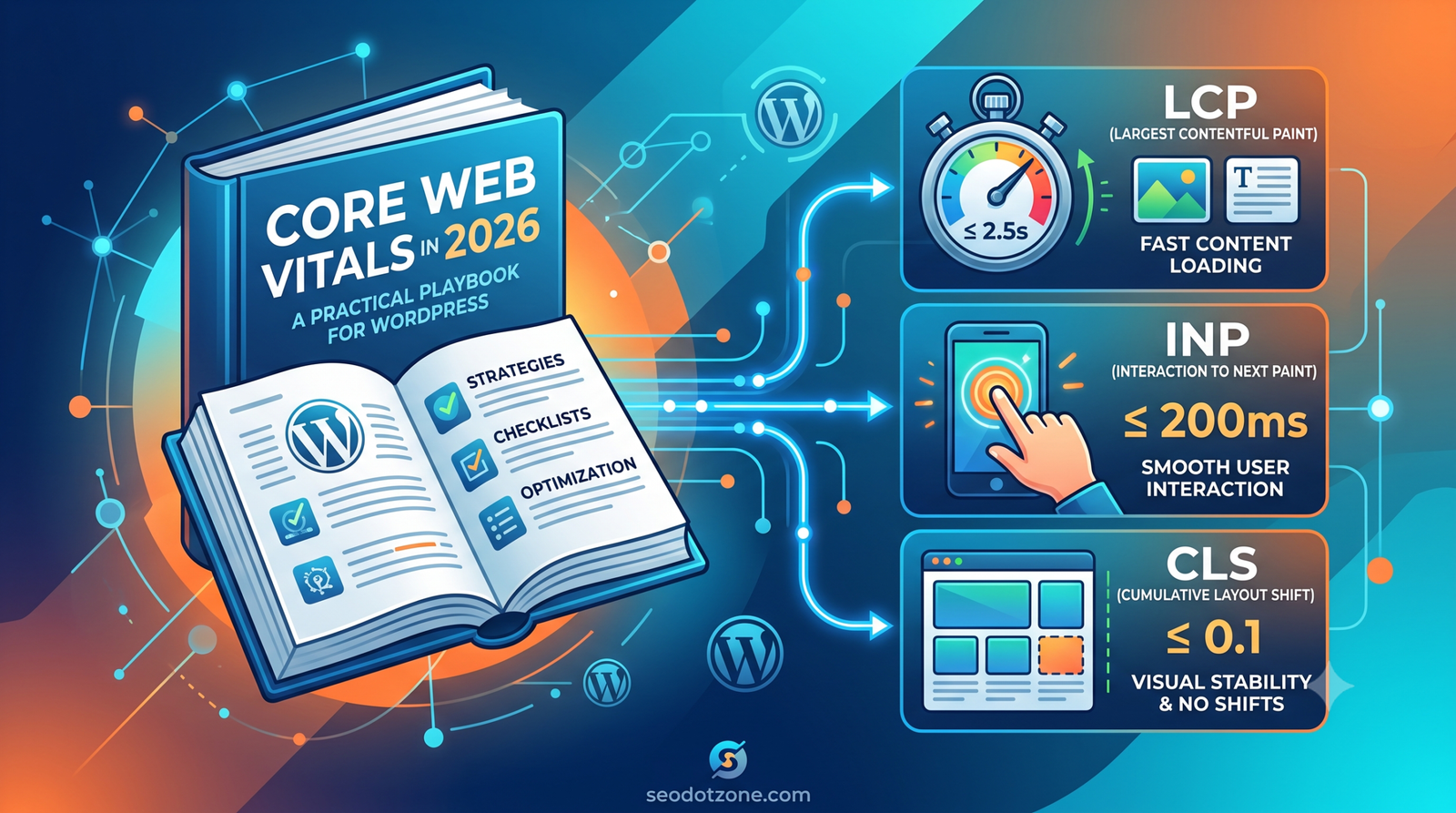
In 2026, Core Web Vitals (CWV) remain an important framework for measuring how real users experience a website. Google currently recognizes Largest Contentful Paint (LCP), Interaction to Next Paint (INP), and Cumulative Layout Shift (CLS) as Core Web Vitals, with INP replacing FID.
This practical WordPress playbook explains what to optimize, how to diagnose problems, and which improvements should be prioritized.
What Are Core Web Vitals?
Core Web Vitals are user-focused performance metrics designed to measure important aspects of a webpage experience.
The three primary metrics are:
- LCP: Measures loading performance.
- INP: Measures how quickly a page responds to user interactions.
- CLS: Measures visual stability and unexpected layout movement.
For a strong user experience, your goal should generally be:
| Metric | Good Target |
| LCP | 2.5 seconds or less |
| INP | 200 ms or less |
| CLS | 0.1 or less |
However, passing these thresholds should not be treated as the only goal. A fast website should also be easy to navigate, responsive, accessible, and useful.
Why Core Web Vitals Matter for WordPress SEO
WordPress makes it relatively easy to publish websites, but flexibility can introduce performance problems. A website may have dozens of plugins, large images, page-builder assets, tracking scripts, advertisements, web fonts, and other resources loading simultaneously.
Google’s own WordPress documentation highlights hosting, configuration, themes, plugins, image size, caching, compression, and database performance as important factors affecting WordPress performance.
From an SEO perspective, Core Web Vitals should therefore be considered part of a broader technical SEO strategy rather than a standalone ranking tactic.
A page that loads quickly and responds smoothly can also provide a better experience for visitors, potentially supporting engagement and conversions.
- Start With Real Performance Data
Before changing your WordPress website, measure its current performance.
Use tools such as:
- Google PageSpeed Insights
- Google Search Console
- Chrome DevTools
- Lighthouse
- WordPress performance tools
Do not rely exclusively on one laboratory test. Real-user data can reveal problems that may not appear consistently during a controlled test.
WordPress’s Performance Team recommends measuring performance to identify improvements and prevent regressions, including the use of Web Vitals and field data.
Practical tip: Test important page types separately:
- Homepage
- Service pages
- Blog posts
- Category pages
- Product pages
- Landing pages
- Contact pages
A fast homepage does not necessarily mean every page on the website is fast.
- Improve LCP: Make the Main Content Load Faster
LCP is often one of the biggest challenges for WordPress websites.
Common causes include:
- Large hero images
- Slow hosting
- Render-blocking CSS and JavaScript
- Excessive plugins
- Slow server response
- Poorly optimized fonts
- Heavy page builders
WordPress LCP Checklist
Optimize the hero image. Compress large images and use modern formats such as WebP where appropriate.
Avoid lazy-loading the LCP image. If the main above-the-fold image is the LCP element, delaying it can make the metric worse.
Improve server response time. Consider better hosting, server-side caching, and a CDN.
Reduce unnecessary CSS and JavaScript. Load only what the page actually needs.
Use caching. WordPress documentation notes that caching can significantly reduce server processing and improve performance.
- Improve INP: Make WordPress More Responsive
INP measures how quickly the page responds when visitors interact with it.
For example, imagine a visitor clicks:
- A navigation menu
- Search
- Add-to-cart
- Form field
- Filter
- Accordion
- Popup button
If the browser becomes busy processing JavaScript, the interaction may feel delayed.
Common WordPress INP Problems
Heavy JavaScript is often the biggest culprit.
To improve INP:
- Remove unnecessary plugins.
- Reduce third-party scripts.
- Defer non-critical JavaScript where appropriate.
- Avoid excessive page-builder elements.
- Reduce long-running JavaScript tasks.
- Optimize interactive components.
- Review analytics and advertising scripts.
WordPress’s Core Performance initiative specifically focuses on interactivity performance and INP as an important performance metric.
- Improve CLS: Stop Layout Shifts
Have you ever clicked a button only for the page to move and cause you to click something else?
That’s a classic layout shift.
CLS problems commonly occur when:
- Images don’t have defined dimensions.
- Advertisements load dynamically.
- Fonts change after page rendering.
- Banners appear unexpectedly.
- Embedded content changes size.
- Popups push content down.
WordPress CLS Checklist
Always reserve appropriate space for images and videos.
Define dimensions for media where possible and make sure dynamic elements do not unexpectedly push existing content.
For advertisements and embeds, reserve the required space before the content loads.
Also test your website on mobile devices because layout shifts can be particularly noticeable on smaller screens.
- Optimize Images Before Optimizing Everything Else
Images are frequently responsible for unnecessary page weight.
A practical WordPress image strategy includes:
- Resize images according to their actual display dimensions.
- Compress images before uploading.
- Use WebP or another efficient format when appropriate.
- Avoid uploading huge original photographs directly.
- Lazy-load below-the-fold images.
- Prioritize above-the-fold images.
WordPress recommends optimizing graphics and considering modern image formats such as WebP to reduce file sizes.
- Review Your Plugins and Theme
More plugins do not automatically mean a slow website, but poorly coded or unnecessary plugins can increase resource usage.
Audit your WordPress installation regularly.
Ask:
- Is this plugin still necessary?
- Does another plugin provide the same function?
- Does it load scripts sitewide?
- Is it adding unnecessary CSS?
- Is it slowing down the database?
- Is the plugin actively maintained?
Your theme also matters. A lightweight theme with efficient code can be easier to optimize than a heavily customized theme packed with unnecessary features.
WordPress specifically recommends deactivating and removing unnecessary plugins and choosing efficient themes.
- Use Caching, CDN and Compression
A practical WordPress performance stack can include:
Page caching + browser caching + CDN + compression + optimized images
Caching allows frequently requested pages or resources to be delivered more efficiently rather than generating everything from scratch for every visitor.
A CDN can also distribute static resources such as images, CSS, and JavaScript closer to users geographically. WordPress recommends combining CDN delivery with caching for performance improvements.
- Don’t Ignore Hosting and Database Performance
Sometimes the problem isn’t your homepage design—it is your server.
Slow hosting can contribute to poor response times and make frontend optimization less effective.
Consider:
- Quality WordPress hosting
- Updated PHP
- Adequate CPU and RAM
- SSD/NVMe storage
- Server-side caching
- CDN integration
- Database optimization
WordPress notes that server load, software versions, hosting resources, and database tuning can all affect performance.
- Create a Repeatable 2026 Optimization Workflow
Instead of randomly installing speed plugins, follow a process:
Step 1: Measure Core Web Vitals.
Step 2: Identify the biggest bottleneck.
Step 3: Fix LCP, INP, or CLS problems.
Step 4: Optimize images and fonts.
Step 5: Remove unnecessary plugins and scripts.
Step 6: Configure caching and CDN.
Step 7: Review hosting and server performance.
Step 8: Test mobile and desktop separately.
Step 9: Monitor real-user performance.
Step 10: Re-test after major theme, plugin, or WordPress updates.
The WordPress Performance Team continues to develop performance-related tools and initiatives, including the Performance Lab project.
Frequently asked questions
What are the recommended Core Web Vitals scores?
How can I improve Core Web Vitals?
What is LCP in Core Web Vitals?
Still have questions? Talk to a strategist →

Written by
Shivam
Search strategist at SeoDotZone writing about SEO, analytics and sustainable growth for Indian and global brands.
Keep reading
-
GEO vs SEO vs AEO: What’s the Difference and Which One Does Your Business Need?  SEO
SEOGEO vs SEO vs AEO: What’s the Difference and Which One Does Your Business Need?
If you’ve been keeping up with digital marketing chatter lately, you’ve probably noticed a new crop of acronyms crowding out the old…
-
Lead Generation: The Complete Guide to Attracting and Converting Quality Prospects  SEO
SEOLead Generation: The Complete Guide to Attracting and Converting Quality Prospects
Every business, no matter its size or industry, lives and dies by one core activity: generating leads. You can have the best…
-
What Is GEO (Generative Engine Optimization)? A Complete Guide for 2026  SEO
SEOWhat Is GEO (Generative Engine Optimization)? A Complete Guide for 2026
Search is changing rapidly. People are no longer relying only on traditional search engines to find information. Instead, users are increasingly asking…